Posts mit dem Label Cubase werden angezeigt. Alle Posts anzeigen

03.03.2022

Steinberg veröffentlicht Cubase 12

Steinberg veröffentlicht das bereits im letzten Jahr angekündigte Cubase 12. Die DAW bekommt wie bei jedem Update einige neue Features und Verbesserungen. Zu den Highlights gehören der überarbeitete Controller-Support, VariAudio mit Skalen-Assistent, der neue Chord Assistant, FX Modulator aber auch ein neuer Limiter und ein neues Sample-Instrument für HALion.

Steinberg Cubase 12

Als erstes werfen wir einen Blick auf die neuen Features, die ihr in allen drei Versionen (Pro/Artist/Elements) findet. Dazu gehört die MIDI Remote Integration. MIDI-Controller integriert ihr darüber jetzt noch einfacher in das Studio-Setup. Mit MIDI Remote Scripts erkennt Cubase Geräte automatisch und weist die Bedienelemente den Parametern zu. Eigene Skripts lassen sich mit dem MIDI-Controller-Oberflächen-Editor selbst erstellen.

Der Chord Assistant erzeugt MIDI-Akkorde aus Audiomaterial. Dafür zieht ihr einfach Audio auf eine Akkordspur, den Rest erledigt Cubase. Falls Akkorde nicht zur Tonart des Songs passen, schlägt der Assistent verschiedene Alternativen vor, die auf den nachfolgenden Akkorden basieren.
Steinberg Cubase 12

Steinberg Cubase 12

Workflow Editing wird mit neuen Funktionen und Tastaturbefehlen verbessert. Die neue Nudge-Grid-Einstellung lässt euch Musik unabhängig vom Projekt-Raster editieren. Dazu kommen frische Tastaturbefehle für das Auswahlbereich-Werkzeug.

Lautstärke-Automationen sind jetzt samplegenau und unabhängig von der Puffergröße. Außerdem gibt es mit Cubase 12 nun geglättete Wellenformzeichnungen. Wer einen Mac mit Apple Silicon benutzt, freut sich über nativen Support. Auf Windows 10 wird MIDI über Bluetooth unterstützt. Dazu kommen Performance-Optimierungen bei allen Versionen.

Neuheiten in Cubase Pro 12 und Cubase Artist 12

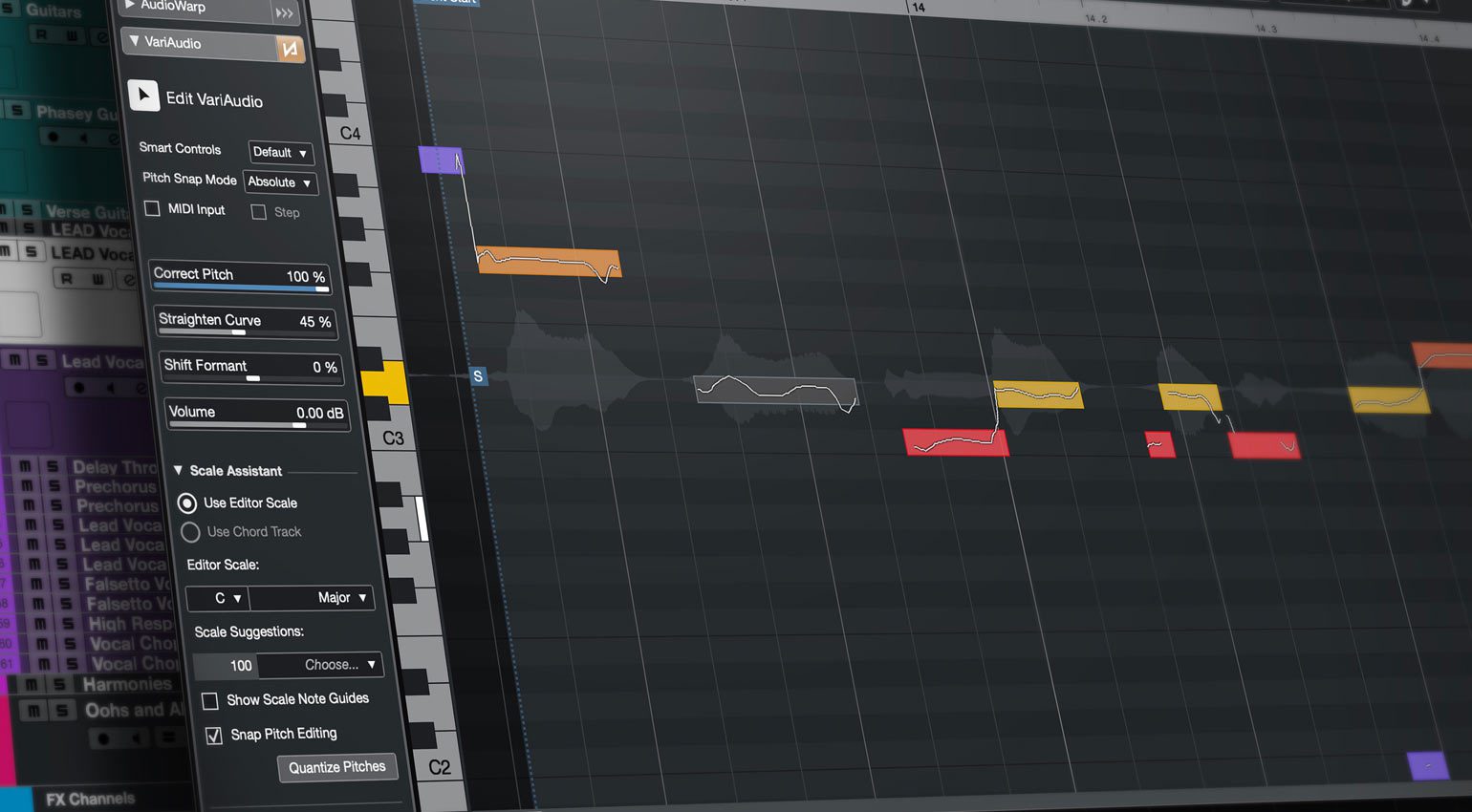
Wer die Pro- oder Artist-Version verwendet, bekommt ein paar zusätzliche Neuheiten spendiert. Das beginnt mit VariAudio und dem Skalen-Assistent. Das bringt zwei Pitch-Editing-Tools. Legt eine Skala fest und folgt der Akkordspur. Der Skalen-Assistenten schlägt eine passende Tonskala vor, die sich nach den aufgenommenen Noten richtet. So quantisiert ihr die Tonhöhe von Aufnahmem oder lasst das Pitch-Editing in VariAudio an der Skala einrasten.

Für Multieffekt-Modulationen sorgt der FX Modulator. Die Palette reicht von Ducking-Effekten bis zu Rhythmus-Patterns. Eigene LFO-Schwingungsformen erstellt ihr damit und modulieret darüber bis zu sechs Effekt-Module gleichzeitig. Der LFO lässt sich ebenso über MIDI triggern oder über mehrere Sidechain-Eingänge steuern.
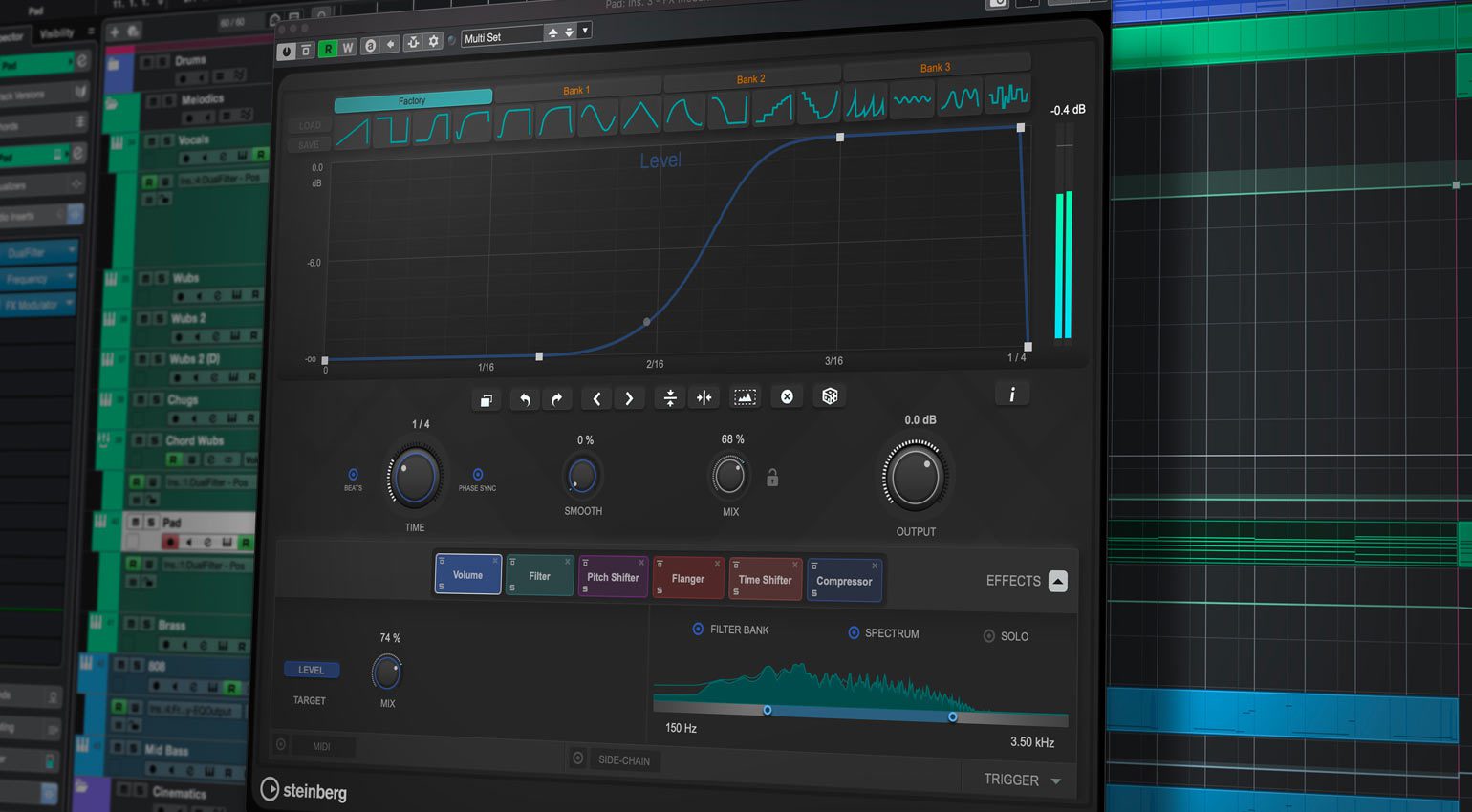
Steinberg Cubase 12 FX Modulator

Steinberg Cubase 12 FX Modulator

Für Timing-Korrekturen gibt es Verbesserungen des AudioWarp. Das Free-Warp-Werkzeug hilft dabei, mit dem neuen phasenkohärenten AudioWarp-Modus gibt es beim gleichzeitigen Bearbeiten von mehreren Spuren keine Phasenprobleme.

Neben neuen Modulen für SupaVison verfügen die Pro- und Artist-Version auch noch über Verbesserungen für ARA. Und es gibt mit Verve ein gesampletes Filzklavier für HALion, das auch einzeln erhältlich ist.

Exklusiv in Cubase Pro 12

Raiser ist das neuste Werkzeug für Dynamikbearbeitung und verspricht „extrem schnelle Attack-Zeiten“ um damit die Loudness zu erhöhen. Raiser eignet sich Steinberg zufolge für aggressives Limiting von Drums und Gitarren, aber auch für Gesang und sogar ganzen Mixen.

Eine weitere exklusive Neuheit für Cubase Pro 12 ist der erweiterte Crossfade-Editor mit mehr Steuerungsmöglichkeiten. Audioexport bekommt Sidechain-Unterstützung, Tempo- und Taktart-Spuren lassen sich jetzt aus Projekten importieren. Und auch der Logical-Editor wurde erneuert.

Ein weiteres Extra stellt der Support für Dolby Atmos dar. Damit reagiert Steinberg auf die wachsende Popularität von Spatial Audio – allerdings wird dieses Feature erst mit einem kommenden Update nachgereicht.
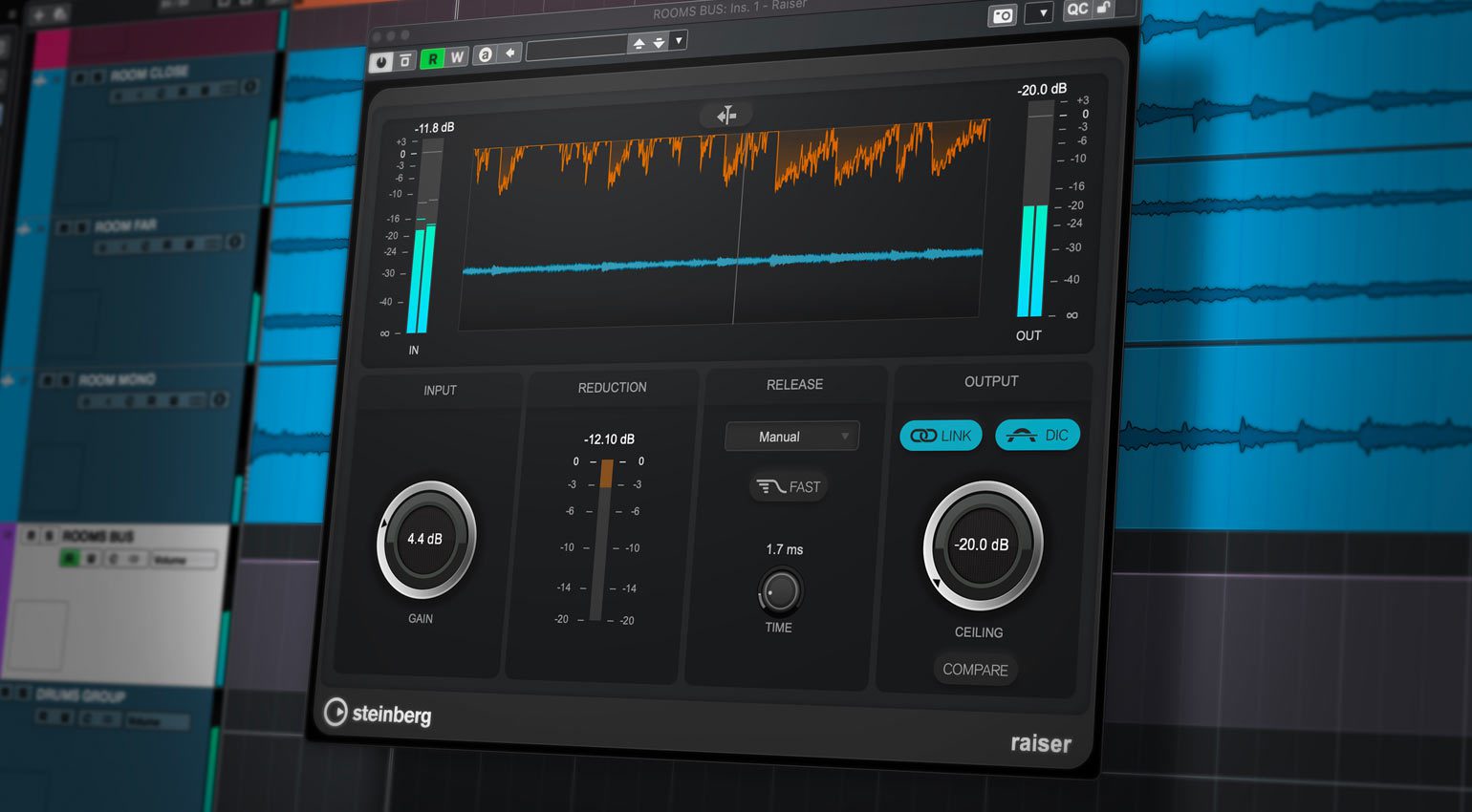
Steinberg Cubase Pro 12 Raiser

Steinberg Cubase Pro 12 Raiser

Tschüss Dongle

Der USB-eLicencer verabschiedet sich, wahrscheinlich habt ihr das schon mitbekommen. Stattdessen gibt es ein Lizenzsystem, das keinen physischen Kopierschutz mehr benötigt.

Spezifikation und Preis

Steinberg Cubase 12 läuft auf macOS (Big Sur und Montery) sowie Windows 10 oder 11.

Cubase Pro 12 kostet 579 Euro, Cubase Artist 12 gibt es für 329 Euro und Cubase Elements 12 für 99,99 Euro. Updates und Crossgrades gibt es natürlich auch, schaut dafür am besten in euren Account.

Weitere Infos über Steinberg Cubase 12


via gearnews.de
https://www.gearnews.de
https://ift.tt/ybzDmNI

02.03.2022

Steinberg Cubase 12, Major DAW-Update


Im Herbst des letzten Jahres verkündete Steinberg, dass die kommende Version von Cubase erst in diesem Jahr erscheinen wird. Und jetzt ist das Major-DAW-Update da. Über die Neuheiten von Version 12 berichten wir im folgenden Artikel. Welche neuen Features bietet Steinberg Cubase 12? MIDI Remote Integration In vielen Tonstudios gehören MIDI-Controller seit Langem zum Equipment-Setup. […]

via AMAZONA.de
https://www.amazona.de
https://ift.tt/gLdnThi


**************
Der Hinweis sei gegeben, dass mit älteren iMACs, die bei 10.13.6 enden, mit Cubase 11 Schluss ist. Auch der HALion Sonic SE geht hier nur noch bis 3.4.40

11.11.2021

Steinberg kündigt Cubase 12 und ein kostenloses Update an

Steinberg Cubase

Logisch, dass früher oder später Cubase 12 kommt, bisher war nur nicht genau bekannt, wann das passieren soll. Nun hat Steinberg in einem Facebook-Post die neuste Version der DAW angekündigt. Die steht für 2022 an und soll einige Neuerungen bringen. Was uns erwartet, verrät uns der Hersteller aber noch nicht so genau. Es gibt lediglich ein paar Andeutungen.

Steinberg Cubase 12

2022 erscheint Cubase 12. Das kann also schon in ein paar Wochen passieren oder eben erst in gut einem Jahr. Aber da Steinberg jetzt schon eine Ankündigung macht, sollten wir uns eher auf das erste Quartal 2022 freuen.

Und damit wir uns auch wirklich auf die Veröffentlichung freuen, verspricht uns Steinberg bereits „inspirierende neue Features“ und „signifikante“ Verbesserungen des Workflows. Okay, das sind die Ansagen, die ja eigentlich bei jedem Update gemacht werden. Geht es denn auch ein bisschen konkreter? Nicht wirklich, so kündigt der Hersteller lediglich an, dass wir schneller „kreieren“ sollen und uns dabei stärker auf die Musik fokussieren können. Marketing-Sprache in Reinform – aber so ist das nun mal bei Ankündigungen.


In den Kommentaren können wir gerne über mögliche Features, Erwartungen oder auch Wünsche diskutieren, vielleicht liest Steinberg ja aufmerksam mit und nimmt sich noch der einen oder anderen guten Idee an. Ich lege mal los – auch wenn ich Cubase nicht benutze: Auf Macs wird der Support für Apple Silicon Prozessoren bestimmt erwünscht sein!

Eine Sache ist aber bereits im Vorfeld sonnenklar: Der Kopierschutz wird neu sein. Das bedeutet im Klartext, dass Steinberg auf den bisherigen eLicenser verzichten wird. Das neue System basiert auf einem ID-System, das alle 30 Tage eine Online-Verbindung erfordert. Es gibt aber auch eine Variante, bei dem ihr nur einmal im Jahr online sein müsst. Mit Dorico 4 soll das neue Lizenz-Verfahren Premiere feiern — wir sind gespannt!

Grace Period – kostenloses Update auf Cubase 12

Aber nun zu dem Teil, der vielleicht für einige von euch sehr interessant sein mag: Wer ab heute Cubase 11 aktiviert, bekommt Cubase 12 als kostenloses Update. Weitere Infos dazu findet ihr hier.

Falls ihr jetzt Lust auf Cubase bekommt, könnt ihr das natürlich auch bei unserem Partner Thomann erwerben. Steinberg Cubase Pro 11 erhaltet ihr hier bei Thomann.de (Affiliate).

Weitere Infos über Cubase 12


via gearnews.de
https://www.gearnews.de
https://ift.tt/30bGjyy

09.04.2019

Bonedo: Crashkurs Cubase


Crashkurs Steinberg Cubase 9.5 für Einsteiger


Workshop: Von der Einrichtung bis zum fertigen Track

Die wichtigsten Einstellungen, Grundlagen der Aufnahme und Beat-Programming sowie Audiobearbeitung und Mischung


https://www.bonedo.de/artikel/einzelansicht/crashkurs-steinberg-cubase-fuer-einsteiger.htm

20.11.2018

Test: Steinberg Cubase Pro 10, Digital Audio Workstation

19. November 2018

30 Jahre und kein bisschen leise!

Steinberg Cubase Pro 10
Steinberg Cubase Pro 10 ist quasi die Jubiläumsversion des Sequencers aus Hamburg: Nächsten April feiern die Steinberger 30 Jahre Cubase. Die Liste an Verbesserungen klingt schon sehr interessant, natürlich werfen wir hier einen Blick darauf.

Der erste Eindruck zu Steinberg Cubase Pro 10

Knapp über 20 Gigabyte ist der Download der Installationsdateien mittlerweile groß, das ist eine Menge. Beim Start fällt direkt auf, dass der Splash-Screen komplett grau ist, ein Omen? Auffällig ist ebenfalls, dass sich die Optik etwas verändert hat und man versucht, wieder mehr Stringenz in das Design und das visuelle Konzept zu bekommen. Das war in den letzten Jahren etwas abhanden gekommen.
Steinberg Cubase Pro 10 - Toolbox
Auch die Toolbox sieht neu aus…
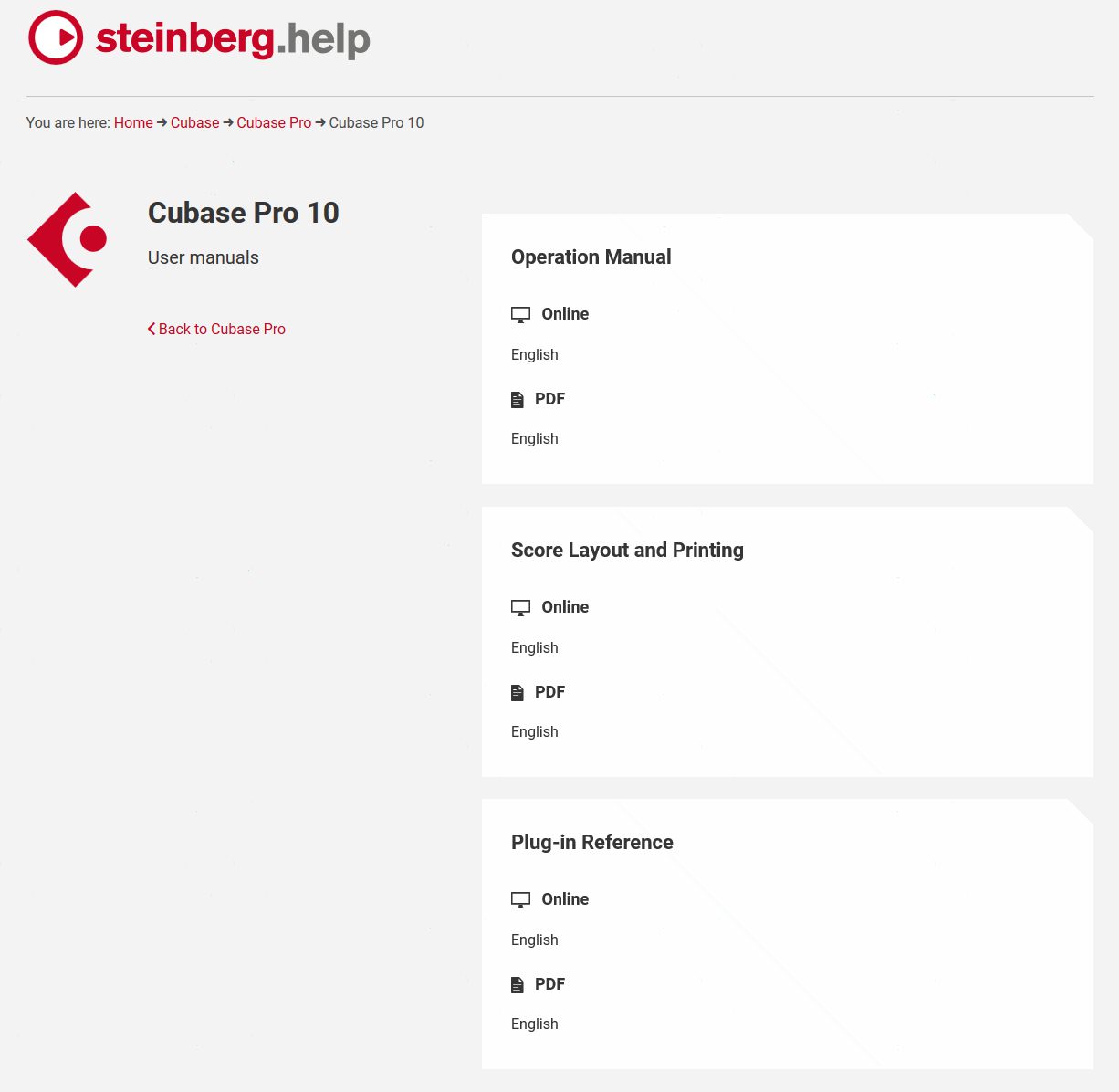
Etwas nervig ist, dass die eingedeutschte Software derzeit nur ein englisches Handbuch besitzt. Somit passen die Begriffe nicht und es artet schnell in Gesuche aus.
Steinberg Cubase Pro 10 - Hilfeseiten
Nur auf englisch…

VariAudio in Steinberg Cubase Pro 10

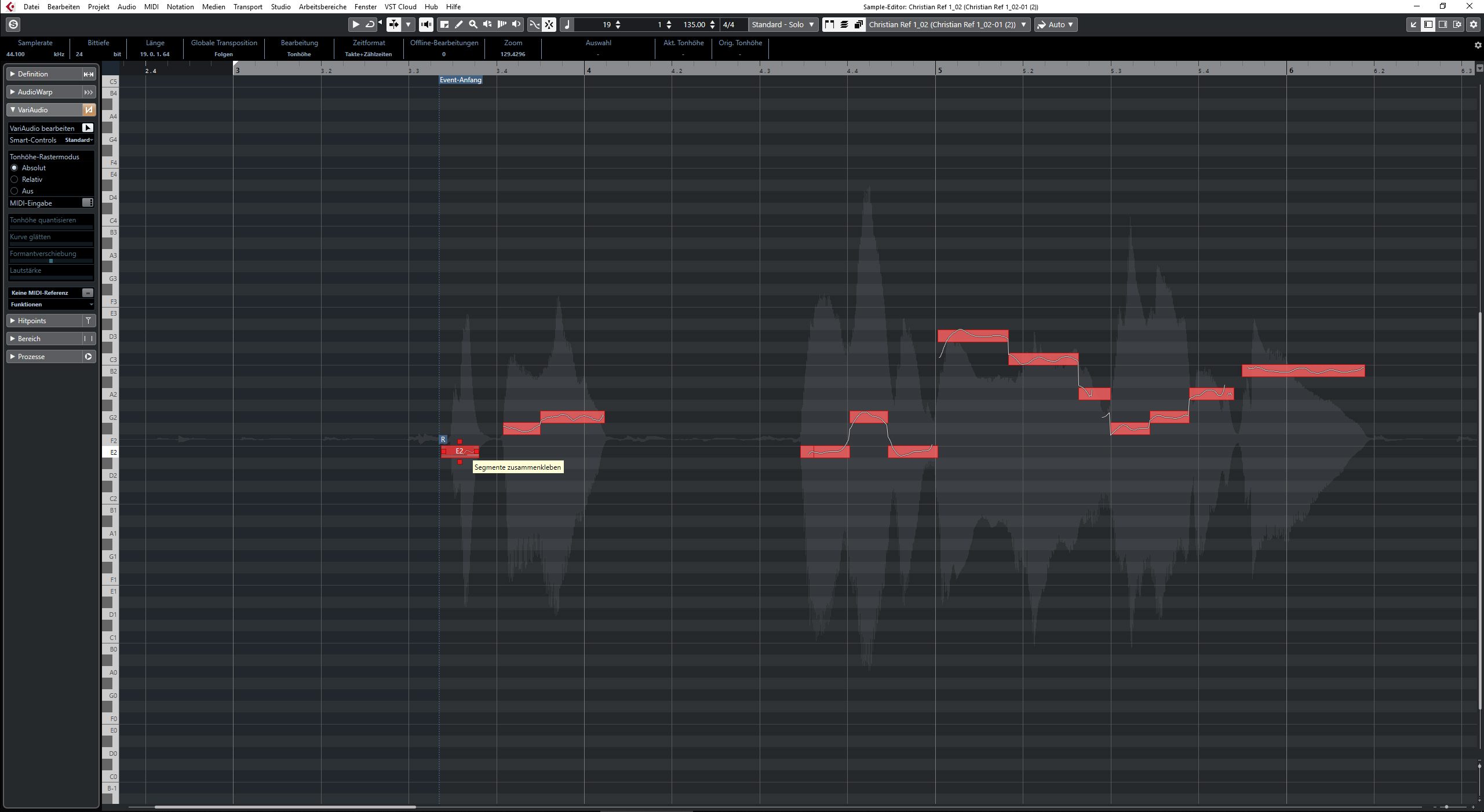
Es wurde oft belächelt als „billiges“ Melodyne. Doch dieses Urteil wurde VariAudio nie gerecht, denn man kann damit sehr gut arbeiten. Ich habe dank VariAudio weniger auf Melodyne zurückgegriffen, weil es einfach einen guten Job macht. Zugegebenermaßen war das Handling aber immer etwas hölzern. So musste man stets den Modus wechseln, wenn man Segmente trennen oder die Grenzen verschieben wollte. Das ist nun in einer Art Multitool gelöst. Man kann nun auch die Übergänge der Segmente (in Melodyne „Blobs“) bearbeiten und nicht nur die Tonhöhe des ganzen Segments. Damit lässt sich auch klanglich deutlich mehr herausholen. Das gibt es in dieser Form so nicht in Melodyne.
Steinberg Cubase Pro 10 - VariAudio3
Das neue VariAudio
Endlich lassen sich auch MIDI-Spuren in VariAudio einblenden. Liegt die Melodie in einer MIDI-Spur vor, kann diese nun endlich als optische Referenz genommen werden. Naheliegend wäre gewesen, dass VariAudio3 die Korrektur zur MIDI-Spur automatisch umsetzen kann. Anscheinend wollen die Steinberger uns noch etwas zum Wünschen für das nächste Update übrig lassen, schade. Auch eine Art Audio-Alignment für die Tonhöhe wäre eine schöne Sache.

Audio-Alignment in Steinberg Cubase Pro 10

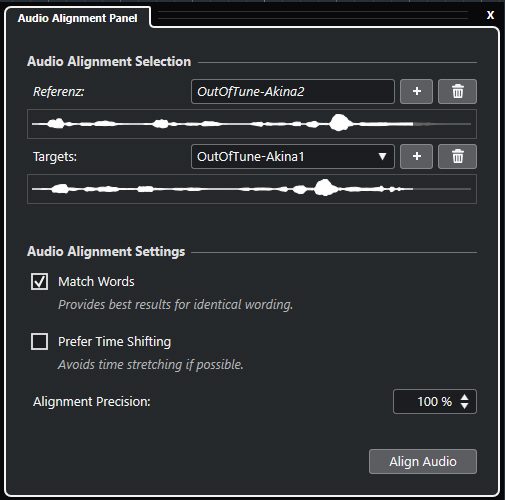
Wir kennen diese Funktion ja bereits aus Nuendo 8, nun haben wir endlich etwas Vergleichbares in Steinberg Cubase Pro 10. Prinzipiell neu ist diese Funktion nicht, wir haben hier ja auch schon Software dazu getestet, allerdings ist diese Funktion nun direkt in Cubase integriert. Keine externen Applikationen mehr, kein Überspielen usw.
Steinberg Cubase Pro 10 - Audio Alignment
Spart viel Handarbeit: Audio Alignment.
Es lassen sich mehrere Audio-Parts an einem zu definierenden Master ausrichten. Natürlich ist es möglich, den Grad der Genauigkeit einzustellen, ebenso wie die bevorzugte Methode: So lässt sich Time Strechting als bevorzugtes Mittel abwählen. Die ersten Tests klangen ganz überzeugend. Zur Erinnerung: Software, die diese Funktion bereitstellt, kostet deutlich mehr als das Update und ist nicht nahtlos integriert! Da müssen sich einige Hersteller jetzt was einfallen lassen.
Akina dreimal, zuerst ohne, dann mit Audio Alignment:
Patrick dreimal, zuerst ohne, dann mit Audio Alignment, danach noch mal mit VariAudio in der Tonhöhe angepasst:
Für die Gesangsaufnahmen standen uns freundlicherweise die beiden Sänger aus dem Live Gesangsmikrofon Special von unserem Autor Armin Bauer zur Verfügung. Wie man sehr gut hören kann, haben sie sogar extra nicht sauber bzw. schief gesungen Das stellte sich als gar nicht so einfach heraus.
Akina Ingold studiert an der Pop-Akademie in Mannheim und ist mit ihrer eigenen Band unterwegs. Patrick Heck wurde die Musik quasi in die Wiege gelegt, er ist mit verschiedenen Formationen unterwegs. Danke an die Beiden und vor allem an Armin Bauer, der die Aufnahmen für uns betreute.

Ein Schnappschuss in Steinberg Cubase Pro 10

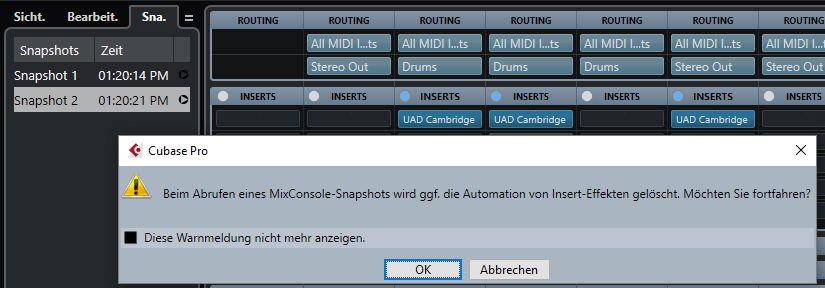
Ein zumindest von mir lang ersehntes Feature sind die Snapshots im Mixer. Es ist nun möglich, verschiedene Mischungen zu erstellen und diese auf Knopfdruck zu wechseln. Automationsdaten bleiben davon leider unbeeindruckt. Hier sehe ich noch Handlungsbedarf.
Besonders interessant sind diese Snapshots beim Erstellen von verschiedenen Mischungen des gleichen Projektes (Mix mit und ohne Vocals, Gesang einmal 3 dB lauter usw.).
Steinberg Cubase Pro 10 - Snapshot
Endlich: Schnapschüsse im Mixer!
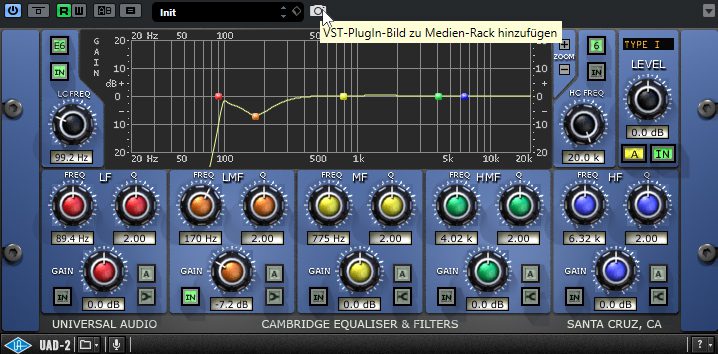
Um die Plugins optisch schneller mit den Presets in der MediaBay in Verbindung zu bringen, kann man auch hier Snapshots erstellen. Diese beziehen sich aber auf die Plugin-Oberfläche, da hier wirklich ein Screenshot vom Plugin gemacht wird und nicht auf den Mixer. Wer’s braucht …
Steinberg Cubase Pro 10 - Snapshot im Plugin
Vorschaubilder für die Mediabay, ganz leicht erstellt!


via AMAZONA.de
https://www.amazona.de
https://ift.tt/2TyOSeC

15.11.2018

Steinberg Cubase 10 – laues Update oder genau das Richtige?


Steinberg hat ziemlich unverhofft Cubase 10 angekündigt. Klar passiert es immer in dieser Jahreszeit, aber dass es heute passiert, traf auch uns unverhofft. Was bringt die neue Version?

Cubase 10

Im Teaservideo wurde anfangs nicht viel gezeigt, mittlerweile sind die offiziellen Videos auf Youtube (vor der Homepage) online und die Funktionen sind quasi klar. Der Leak auf Gearslutz hat quasi alles Wichtige verraten. Cubase 10 wurde optisch ein wenig angepasst. Der Mixer aus dem Teaser ist es nicht geworden.

...
https://www.gearnews.de/steinberg-cubase-10-daw-news/

Cubase 10 jetzt erhältlich!

Cubase 10 jetzt erhältlich!
"Cubase 10 ist da – im neuen Look und mit vielen neuen Tools. Die neue Cubase-Version bietet dir innovative Features in einer noch leistungsstärkeren DAW. Alle Neuerungen wurden speziell dafür entwickelt, dass du noch kreativer und schneller Musik produzieren kannst. Auch die Audioqualität ist noch besser geworden. Mit Cubase 10 wird deine Musikproduktion inspirierender als jemals zuvor sein. "

https://new.steinberg.net/de/cubase/new-in-10/

Als Update/Upgrade von zB. 9.5 Elements für 30.-

28.02.2018

5 Pro Tips For Audio And MIDI Routing In Cubase

1. Quick Audio Channel Select

The Channel Settings window for any audio-capable channel in a project has a toolbar along its top edge that gives you quick access to audio input and output routings. You can quickly select an input and output routing from here and if you click on the Show Output Chain button - the button with several arrows on it - you can reveal on the right hand side of the window the faders that control this particular channel’s audio as it runs through Cubase. So in this example you can see the Vocals channel and then the Stereo Out channel - the two channels this track is using. 

2. Direct Routing (Cubase Pro Only)

In addition to the main output, the Direct Routing rack - which can be shown from the Channel Settings window options menu for a channel - allows you to set up as many as 7 routing destinations that are post-fader and post-panner in the signal path. By using this you can switch the destination of channels and create different mix versions at the same time. In the Direct Routing rack, the first routing slot shows the routing of the main output. Direct routing is available for audio, instrument, sampler, FX channel tracks, groups, and output busses. You can also set and activate outputs for several selected channels at once. 

3. MIDI Modifiers

You may be familiar with MIDI insert effects which either generate or process MIDI on a track. But there’s another option in the Inspector panel for a MIDI track and that’s MIDI Modifiers. This area gives you access to tools that can alter MIDI input and also MIDI data that has already been recorded, say to transpose it, alter velocity, length or velocity compression and more. To process live MIDI playing, select and record enable the track and activate MIDI Thru Active in the Preferences dialog (MIDI page).

4. Use Multichannel VSTis

Some VST instruments are capable of outputting more than two audio streams into a project. This makes it possible to get much greater control over the processing and mixing of different channels - say for example sending different drum sounds from a VST through separate processing. To activate these channels go to the VSTi zone on the right and click the output options menu for the chosen instrument. Then activate any outputs you want, and these will appear as separate channels, properly named, in MixConsole. 

5. ReWire Setup

It doesn’t get as much attention as it used to, but ReWire is still supported across multiple DAWs and a great way to link applications made by different developers and stream audio and MIDI between them. In the Studio menu select the ReWire option to see the available ReWire apps n your system. Activate any that you want to use and then with Cubase booted first and the ReWire app second you will be able to select MIDI devices in one application from the other, and stream audio tracks through from the slave app into Cubase. 


from AskAudio Magazine http://ift.tt/2owjqj0 http://ift.tt/2EW2YCW
via IFTTT

10.01.2018

Learn Cubase From The Experts With New, Free Live Labs


Brand new from our sister site Ask.Video, Live Labs are a great way to learn your favourite musical tools and techniques in the company of industry experts. In this upcoming Live Lab on Cubase, join Matt Hepworth as he delves into this powerful DAW and its many features - you'll even be able to ask questions live in real time.

Click here to enrol and watch for FREE! The lectures are free for Ask.Audio, Ask.Video and macProVideo members so be sure to sign up and take advantage of this, the first in a series of six lectures with Matt.
The lecture begins on Wednesday January 10th, 2018 at 12:00pm (PT) / 8PM (UK) / 9PM (CET). Sign up now to benefit from this series of free lectures on Cubase, and other DAWs, tools and techniques that will be covered in further workshops in the very near future. 


from AskAudio Magazine http://ift.tt/2AM4i4A http://ift.tt/2FqbGWU
via IFTTT

05.12.2017

5 Plug-In Management Tips For Cubase


1. Drag And Drop In MixConsole

Most people know how to add insert effects to a mixer channel in MixConsole. But did you know that you can pick any effect up from its slot and drag it to any other slot? Or, hold down the alt key while dragging to duplicate the effect to a new slot on any channel. The clever part about this second method is that it copies all the parameters of the effect, not just the effect itself. So let’s say you have spent ages getting a vocal compression set up just right. You could save it as a preset, but you can also quickly duplicate the instace to another channel, taking the setting with you as you go.

2. Use Cubase’s Powerful Track Presets

From any insert section either in MixConsole or the Track Inspector for a channel, you can click at the top of the FX list to choose to save (or indeed load) a Track Preset. This is a file that contains data about the plug-ins loaded as well as all their respective settings. In the Save window you actually get a bunch of options that go well beyond simple preset naming. You can add attributes, tags and even create folders to group presets together. Over time this is a good way to build your own library of FX chains for specific purposes, and achieve a signature sound.

3. The Plug-In Manager

In the Devices menu you will find access to Cubase’s Plug-In Manager, a comprehensive tool for staying on top of your plug-in collection. As well as being able to specify custom VST folder locations you can see which plugs are active, which are in use, blacklisted as problematic and sort the list by type, name, compatibility and so on. From here you can manually deactivate a plug without physically deleting it, and in the Collections list on the right hand side you can create custom folders, perhaps grouping by type, manufacturer or other characteristics. It’s a great way to manage plugs without delving into system-level folders.

4. The VSTi Window

Click on the Show Right Zone button at the top right corner of the Project window to reveal the VST Instrument section. This is a much quicker way of loading and assigning instruments than doing on a per-channel basis. You can search your library and load multiple instruments, assign tracks and MIDI channels to them, use quick controls, open full GUIs and even freeze tracks from here. It’s a powerful tool for managing your virtual instruments inside Cubase.

5. Plug-In Information

Also in the Devices menu can be found a Plug-In Information option. When opened, this provides a simple overview of all the different plugs, codecs and system extensions that Cubase has access to. You can disable or enable these using their checkboxes in cases of troubleshooting, though for the most part you will probably want to leave the system-level stuff alone: there’s a reason it’s there. 


from AskAudio Magazine http://ift.tt/2klkcjI http://ift.tt/2nvcVyY
via IFTTT

15.11.2017

Steinberg Cubase 9.5 – das ist neu

Die Firma Steinberg veröffentlicht mit Cubase 9.5 ein großes Update für ihre DAW in der Pro, Artist und Elements Version. Das eigentlich zum üblichen Termin Anfang Dezember erwartete Release enthält viele Verbesserungen und neue Funktionen, die Nutzer der Software schon vor etlichen Versionen von dem Hersteller forderten. Jetzt scheint ein Großteil befriedigt zu werden und bekommt oben drauf noch weitere sehr interessante Features.

Cubase 9.5 mit mehr Workflow

Neu in dem wirklich großen Feature Update der DAW Cubase ist ein neuer Dateibrowser für mehr Überblick, ein schnelleres Arbeiten mit Sounds und zur Projektverwaltung. Auch ein größeres und übersichtlicheres Metering System wurde nun zur rechten Zone hinzugefügt, das auch über den direkten Zugriff über Control Room, Cue- und Monitor-Mixes verfügt. Für schönere Automationsfahrten könnt ihr in der neuen Version durch Bezierkurven jeden möglichen Verlauf einzeichnen. Darüber hinaus ist das Kopieren von Automationen, sowie eine schnelle Änderung eines Automationsbereichs vereinfacht worden.
Wer gerne mit Metronom und Klick-Tracks spielt, darf sich ebenfalls freuen. Denn ihr könnt jetzt den typischen Metronom Sound verändern, Grooves der Taktvorgabe frei abändern und sogar über das Songarrangement steuern. Die Mix Engine in Cubase 9.5 kann jetzt auch 64 Bit und schließt somit zu anderen DAWs auf. Dazu wurden die verfügbaren Insertkanäle pro Kanalzug verdoppelt und ihr könnt selbst entscheiden, ob der Effekt Pre- oder Post-Fader eingeschleift werden soll. Eine Überarbeitung der hauseigenen Plug-ins Vintage Compressor, Tube Compressor und Magneto III hat auch stattgefunden.
Die Offline Bearbeitung wurde ebenso erweitert und kann nun vorgefertigt jeder Effektkette hinzugefügt werden. Der Sampler HALion Sonic SE 3 ist jetzt mit der FLUX Wavetable Synthese ausgestattet. Für Filmmusiker existiert ab sofort eine verbesserte Videoengine mit weiteren Codecs und besserer Wiedergabe. Eine neue Samplerspur mit Drag And Drop Funktionalität (MIDI und Audio wird direkt in ein Samplerfile umgewandelt) bringt die typische Arbeitsweise eines Samplers wieder zurück in die DAW.
Und das ist für alle Softube Fans und Besitzer der Console 1 interessant: ab Anfang 2018 soll die Hardware und Software der Softube Console 1 direkt in den Cubase Mixer integriert werden (wie es aus Studio One bekannt ist). Damit könnt ihr von der Hardware Standard Funktionen wie Lautstärke, Panorama oder Effekt Sends, sowie die Console 1 eigenen Parameter fernsteuern. Sehr schick!
Mehr könnt ihr den Tutorial Videos der Cubase Seite entnehmen.

Preis und Spezifikationen

Die Vollversionen von Cubase 9.5 kosten:
  • Cubase Pro 9.5 – 579 Euro
  • Pro Updates von Version 4 bis Version 9 liegen zwischen 59 Euro und 299 Euro
  • Pro Upgrades liegen zwischen 249 Euro und 449 Euro
  • Pro Crossgrade – 349 Euro
  • Cubase Artist 9.5 – 329 Euro
  • Artist Updates von Version 4 bis Version 9 liegen zwischen 49,99 Euro und 179 Euro
  • Artist Upgrades liegen zwischen 199 Euro und 249 Euro
  • für Cubase Elements 9.5 liegen uns noch keine Preise vor
  • (A.d.R.: Cubase Elements 9.5. Update gibt es für 19.99 Euro
Weitere Spezifikationen erhaltet ihr auf den Produktseiten des Herstellers.

Mehr Infos

Video


from gearnews.de http://ift.tt/2iWdLzp http://img.youtube.com/vi/673VCqVHY9Y/0.jpg
via IFTTT

06.10.2017

Advanced Tempo Techniques In Cubase


Working with tempo is one of the more advanced things you can do with Cubase and although it is sometimes thought of as more of a scoring technique, used to mix different pacing within a single project while composing music to picture, it actually has many more uses. To give just a couple of examples, tempo or time signature changes within regular songs are not uncommon, and manipulating speed within samples is a good way of creating special effects. Let’s look at some of the ways you can use tempo changes inside Cubase to make your projects more interesting. 


from AskAudio Magazine http://ift.tt/2yqVgNN http://ift.tt/2y3VOrg
via IFTTT

28.07.2017

Exploring Cubase 9’s Sampler Track

Cubase 9 introduces us to the new Sampler Track. Steinberg have built a new sampler engine that can be used to create your own unique sampler instruments. It’s a very sleek and simple interface, but has some nice hidden features. Let’s take a look at how to create your own sampler instruments from one shot sounds, and by using loopable sounds

Adding a Sampler to the Track

Let’s start off with an audio track with a drum loop on it. I want to pull this sound into a sampler and chop it up so that I can use the first bit as a kick sampler. What you first need to do is create a Sampler Instrument from the Project Menu. Go to Add Track and then choose Sampler.
You can give the Sampler its own name, maybe Kick Drum or something. You can also add a sampler track by right-clicking on the empty grey area under your tracklist and choosing Add Sampler Track from the pop-up contextual menu.
When you create the track, the Sampler will show up in the lower zone.

Add Audio to the Sampler

Now to add audio to the sampler track is quite easy. All you have to do is drag the audio file onto the sampler in the lower zone, where it says drop audio here. The audio will be imported into the sampler, and you’ll see the waveform.

Start and End Points

You can see that this is a drum loop, and I want to remove all the other audio in the file except for the first drum hit which is the kick. So all I have to do is grab the ‘Set Sample End’ locator and drag this all the way to the left to indicate when I want the end of the sample to be.
I can also add a fade on the end to smooth out the end sound of the sample.

Editing the Sampler

The beauty with the sampler track is that I can now customize this sample in the engine. For example, I can go into the Amp Envelope and change the sustain and release points on the sound. I’ve shortened the release time to tighten up this sample.
With the Pitch Envelope, I can change the pitch of the sample, plus add in some glide. This works well if you're creating a tonal sound like a bass, and you want each note to glide into the next note pitch. You also have a Filter Envelope so I can tailor the cutoff and resonance on the sound and use different filter shapes. The most interesting envelope is the AudioWarp section. Here I can either choose the source as a Music or Solo sound. For this one shot sound I’m going to use Solo, and then use the Formant dial to alter the sound of this Kick.

Creating Looped Sampled Sounds

So that was demonstrating how to create a single shot sound, now how do you create a sound in the sampler that loops? Let me show you. I’m going to use that same drum loop sample. I’m going to drag this drum loop to a new sampler track. Now for the loop mode, I’m going to set this to Continuous.
I’m also going to enable AutoWarp mode. I’ll leave the Mode set to Music, and under Sync, I want to choose Tempo. This will make sure that the sampled loop is always in time with the tempo of the project. Also make sure to put in the right tempo in the Original BPM field. If it isn’t right, just click the box and type in the correct tempo. In addition to the start and end markers for the sampled song, I can also set loop points where it will loop in the audio. I want the first part to play through, but I want the second part to loop. So I’m going to drag in my left loop marker to the point where I want it in the sound. Then I’m also going to drag in the right loop marker to set where it loops. The great thing about this feature is that there is an audio visual waveform that displays in green, so I can match up the transients with the original sound to get a perfect loop point.
But if you’ve worked with samplers before you’ll realize it’s not always that easy. When I hit my C3 key which the sampled sound is assigned to it starts the loop, but then when it reaches the end loop point where it loops back to my first loop marker, there is a slight click in the sound. What I can do to correct this is to add some small crossfades between the section. And to add these fades I just grab the white square box near the loop points and drag them out to create the fades.
It now sounds like it's looping more seamlessly. Also the beauty of using the Auto Warp mode is that if I now choose to change the tempo of my project the loop will adapt to the new timings. This makes it really easy to work with different looped sounds and get them to sync with your project.
Because I pulled the drum loop onto C3, when I play different keys on my keyboard it plays back the sample at different pitches, but it still stays in time. This can be quite a handy feature with more tonal sounds but it’s also interesting to use it with instruments like drums, which don’t tend to change pitch. Now in the sampler track I can use this re-pitching of percussive instruments to our advantage for interesting sound design elements

Other Loop Modes

There are some other loop modes you can try. The ones I quite like are the Alternate modes (Alternate and Alt Till Release). What happens with these loop modes is that the audio loops from the left loop marker to the right loop marker. When it reaches the right loop marker it reverses in direction back to the left loop marker. You can get some quite interesting results with this. Try it out with a drum loop. The loop will play forward and then play the loop in reverse when it loops back.

Conclusion

So that is how to use the new Sampler Track in Cubase 9 to create either one shot sampled audio sounds, or how to take a longer sound and create loop points and make sure it loops seamlessly. Have fun with the new sampler track, pull in some audio files you have lying around and tweak them in the Sampler Track. You never know it might add a different element to the song you’re working on.
 Learn more about Cubase in the AskAudio Academy
here.


from AskAudio Magazine http://ift.tt/2w3136H http://ift.tt/2uEb6RY
via IFTTT

14.07.2017

Creating Macros In Cubase

Macros are chains of actions that you can trigger with a single click or key command, and that can save you a bunch of time. Here's how to create them in Cubase. ...

from AskAudio Magazine http://ift.tt/2uVcLRj http://ift.tt/2uqGi8o
via IFTTT

16.05.2017

Using Cubase 9's Audio Processing Tools To Create Atmospheres & Effects


You may well have ventured into Cubase’s Audio > Process menu or right-clicked on an audio clip in a project to access the same tools. Here you will find “offline” processing that gets applied to a whole clip, the same basic principle as batch processing a bunch of WAVs into MP3s. Plugins process sound in realtime, but these offline tools render a change, and then the file has been altered. There are many good reasons to use offline processing, such as when one or more files need their volume changing permanently, their stereo phase altering, their direction reversed and so on. Process them once and then forget about them.


from AskAudio Magazine http://ift.tt/2riLAh8 http://ift.tt/2qMhLsz
via IFTTT

19.03.2017

Working With Multiple Arrangement Views in Cubase 9

Large projects can mean lots of zooming and scrolling, but there's a feature in Cubase 9 you may not have known about that can save you a bunch of time and effort... ...

from AskAudio Magazine http://ift.tt/2n5Rnr5 http://ift.tt/2nnqzTJ
via IFTTT

17.02.2017

Exploring the new Sampler Track in Cubase 9

Ever wished you could trigger and mess with samples without having to dive into a complex editor? With Cubase 9 and the new Sampler track, you can! ...

from AskAudio Magazine http://ift.tt/2lWiNeP http://ift.tt/2m0THM6
via IFTTT

03.02.2017

Improving Your Arrangements in Cubase 9

Test out different arrangements of a project without lots of tedious copying and pasting by simply using Cubase's handy Arranger Track. ...

from AskAudio Magazine http://ift.tt/2kw1GDa http://ift.tt/2kYM0tf
via IFTTT

14.12.2016

Cubase 9 (Elements Version)

Nach den großen Tönen mit Ankündigung der 9er Version von Cubase (Pro, Elements, AI) hier eine Featurebericht bezogen NUR auf die Elements-Version. Als Update von Elements 8/8.5  kostet das 30€

Mit drin ist:
  • Zonen-Einteilung
  • Sampler Track
  • Maximizer 
  • Production Grooves
  • AutoPan Plugin
 Nicht drin ist:
  • Frequency EQ
  • MixConsole History 
  • mehrere Marker-Spuren
    verschiedene Instrumente auf mehreren Spuren aufzunehmen und für jede einzelne Spur individuelle Marker zu setzen
  • Audio-Ins
    Die Audio-Ins Option bietet die Möglichkeit, Audiosignale in VST-Instrumente zu routen, die Side-Chaining unterstützen.

07.12.2016

Cubase Pro 9 – das sind die Features

Der erste Mittwoch im Dezember ist da und mit ihm der pünktliche Release von Cubase 9. Nun, nicht offiziell, sondern Sweetwater, ein Händler aus den USA hat die Produktseite gelistet, bevor es offiziell bekannt gegeben wurde. Wenn auch alle heute Cubase Pro 9 erwartet haben, ist es doch ein echter Leak. Anders als der Mitte/Ende November, der ein waschechter Fake war. Hier findet ihr die neuen Features auf einen Blick.


Mehr Infos


from gearnews.de http://ift.tt/2hhhvsB https://www.youtube.com/embed/b5OOvRErlEc?feature=oembed
via IFTTT